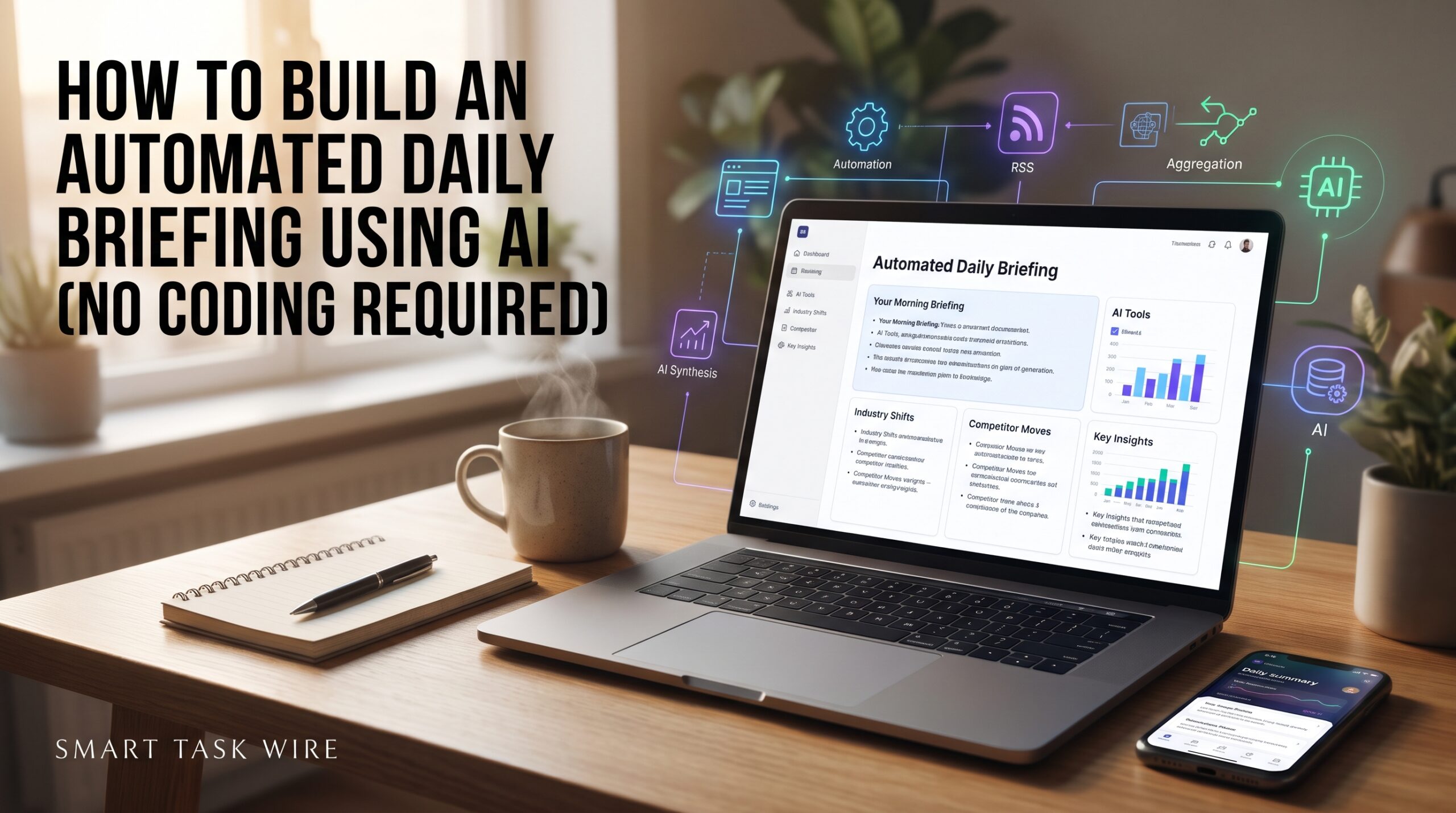
Learning how to build an automated daily briefing using ai has become one of the highest-leverage productivity habits for busy professionals, entrepreneurs, and team leads in 2026. Starting your workday by jumping between ten browser tabs, scanning unread emails, checking Slack channels, and parsing messy calendars wastes your peak mental energy before you accomplish a single task.
Instead of losing 30 to 45 minutes every morning to manual information gathering, you can create a custom digital chief of staff that runs while you sleep. By connecting everyday tools like Google Calendar, Gmail, and Notion to modern language models through visual automation builders, you can receive a clean, 60-second summary delivered directly to your inbox, Slack, or phone every day at 8:00 AM.
The best part is that you do not need to write a single line of Python or touch a server. In this step-by-step tutorial, you will discover how to build an automated daily briefing using ai from scratch using zero-code tools.
Why You Need an Automated Daily Briefing Using AI in 2026
Table of Contents
The traditional morning scramble forces your brain into a reactive state. When you open your inbox first thing in the morning, you immediately begin answering other people’s emergencies rather than executing your strategic priorities.
An automated daily briefing using ai shifts your posture from reactive chaos to proactive focus. Instead of wading through hundreds of lines of noise, an intelligent agent extracts only what demands your immediate attention:
- Triage over summarization: It flags emails needing a reply before noon while filtering out promotional digests.
- Contextual meeting preparation: It checks your calendar and summarizes previous notes regarding each attendee.
- Consolidated task accountability: It pulls overdue tasks from your task manager and lists your top three priorities for the day.
Once you know how to build an automated daily briefing using ai, your entire morning alignment takes less than two minutes to read over coffee.
The Core No-Code Tech Stack
To assemble this workflow without coding, you only need three core layers:
- The Data Sources: Your existing tools, such as Google Calendar, Gmail (or Outlook), and your task manager (such as Todoist or Notion).
- The Automation Orchestrator: A no-code visual workflow platform like Make.com or Zapier that triggers on a schedule and passes data between apps.
- The Intelligence Engine: An AI model (such as OpenAI’s GPT-4o via API or Claude) prompted to analyze, filter, and structure the data.
- The Delivery Channel: Where you read the digest, such as Slack, Telegram, or an email sent to your private address.
Step 1: Create Your Automation Trigger in Make.com
To start, sign up for a free account on Make.com (or Zapier) and create a new scenario.
- Add a Schedule Trigger: Set the scenario to run every weekday morning at your preferred start time (for instance, 07:30 AM).
- Connect Google Calendar: Add the Google Calendar module and choose the action “Search Events”. Configure the date filter to match
Todayso it only fetches meetings scheduled for the upcoming day. - Connect Gmail: Add a Gmail module with the action “Search Emails”. Filter messages received in the last 12 hours with labels like
is:unreadandcategory:primaryto ignore marketing newsletters. - Aggregate the Outputs: Use Make’s native Text Aggregator module to compile the calendar event titles, meeting attendee names, and email subject lines into a single clean text payload.
For users who manage complex spreadsheets or lead lists, this workflow pairs seamlessly with methods to automate Excel and Google Sheets with AI.
Step 2: Configure the AI Synthesis Prompt
Once your data sources are gathered, you need an intelligence layer to extract meaning from the raw data. Add the OpenAI module into your Make scenario and select the “Create a Completion” action.
The secret to a reliable morning summary lies in prompt engineering. Use this battle-tested system prompt:
System Prompt:
“You are an executive chief of staff. Analyze the provided calendar events, unread emails, and open tasks. Output a structured daily executive brief under 350 words using clean markdown. Follow this exact hierarchy:
1. 🔥 Top 3 Non-Negotiables: The most urgent deadlines or critical tasks for today.
2. 📅 Schedule & Meeting Context: Chronological meeting list with start times and attendees.
3. 📬 Communications Needing Action: Unread emails requiring a direct reply before noon.
4. 💡 Quick Win: One small task that takes under 10 minutes to unblock someone else.
Grounding rule: Never invent meetings, names, or emails. If a category has no items, state ‘None’ and move on.”
By implementing strict formatting rules, you prevent model hallucinations and ensure the summary remains concise and actionable.
Step 3: Route the Output to Slack or Email
Now that the AI has processed your schedule and messages, send the result to your favorite channel:
- For Slack Users: Add the Slack module, choose “Create a Message”, and set the destination to your private direct message channel (
@slackbotor your personal user ID). - For Email Delivery: Add an email send module that forwards the markdown text directly to your inbox with the subject line:
Morning Executive Briefing - {{formatDate(now; "YYYY-MM-DD")}}. - For Mobile Messaging: Connect a Telegram bot or WhatsApp webhook to read the brief directly from your lock screen while commuting.
If you frequently handle long documents alongside morning messages, consider connecting this system to the best AI research tools for PDF analysis to summarize overnight reports automatically.
Step 4: Add Contextual Meeting Preparation
Once your basic pipeline is running smoothly, add this high-leverage upgrade:
Instead of simply listing meeting times, have the workflow pull the email addresses of the attendees on your calendar. Pass those contacts into a secondary search step that finds your last two interactions with them.
When the AI compiles the brief, it will include a note like:
- “10:30 AM Strategy Call with Sarah: In your last email exchange on Tuesday, she requested updated figures on Q3 retention.”
This turns a simple schedule reminder into genuine executive preparation, saving you from frantically searching your inbox two minutes before a video call starts.
Comparison of Automation Platforms for Daily Briefings
| Platform | Difficulty Level | Best For | Free Tier Quota | Webhook Support |
| Make.com | Beginner to Intermediate | Complex multi-branch data flows | 1,000 operations/month | Native & Unlimited |
| Zapier | Complete Beginner | Quick 2-step triggers & connections | 100 tasks/month | Available on Paid |
| n8n | Advanced / Self-Hosted | Full data privacy & zero execution fees | Free self-hosted tier | Full REST & Webhook |
| Slack Today | Zero Setup | Native Slack workspace ecosystems | Included in AI plans | Built-in |
For those looking to expand beyond desktop automations, explore our roundup of the best AI Chrome extensions to save hours weekly for inline browser shortcuts.
Common Pitfalls and How to Avoid Them
When setting up your automated daily briefing using ai, watch out for these three common traps:
- Pulling Too Much Data: Do not pass 50 unread emails into your AI prompt. The model will produce a wall of text that defeats the purpose of a brief. Use filters to restrict inputs to high-priority categories.
- Neglecting the Grounding Clause: Always include strict instructions warning the model never to fabricate commitments. An AI assistant that invents a fake meeting is counterproductive.
- Leaving Inboxes Unlinked: Ensure your credentials use refresh tokens so your automation does not disconnect every seven days.
If your team communicates primarily via email rather than Slack, review the top-ranked AI email assistants to reach Inbox Zero to clean up incoming mail before it hits your morning brief.
Frequently Asked Questions
How much does it cost to run an automated AI daily briefing?
Using Make.com’s free tier and OpenAI’s API (utilizing GPT-4o-mini), running one detailed daily briefing costs less than $0.02 per day, or roughly $0.50 a month.
Is my private calendar and email data safe?
Yes, provided you use direct API connections through SOC 2-compliant platforms like Make or Zapier and choose enterprise-grade AI APIs that do not train public models on user data.
Can I build this if I have never used an API before?
Yes. Modern platforms use graphical drag-and-drop connectors where you sign in using standard Google or Microsoft OAuth popups without handling API endpoints manually.
Final Takeaway
Mastering how to build an automated daily briefing using ai transforms how you approach each workday. By outsourcing the collection, triage, and formatting of your daily agenda to an automated assistant, you reclaim 30 minutes of deep focus every morning.
Set aside one hour this weekend to connect your calendar, write your system prompt, and test your first briefing. Once you experience starting your day with a clear, synthesized plan waiting on your phone, you will never return to the morning tab-juggling scramble again.