
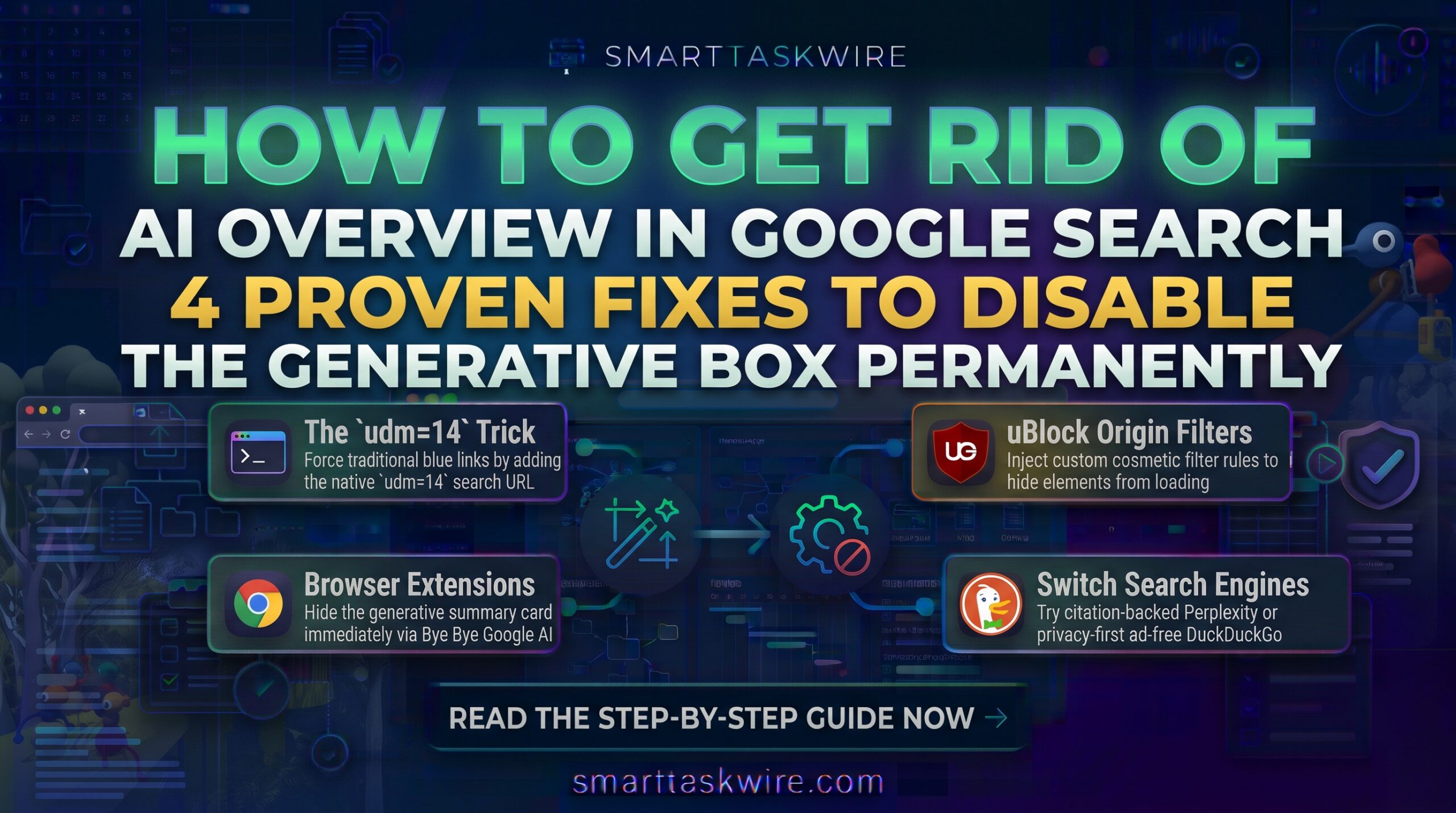
How to Get Rid of AI Overview in Google Search (4 Proven Fixes in 2026)
Table of Contents
When Google integrated AI Overviews directly at the top of organic search results, the promise was instant answers without clicking through multiple tabs.
Instead, millions of daily searchers encountered a frustrating reality: inaccurate summaries, hallucinated advice, and intrusive screen-hogging boxes that push authentic human-written articles far below the fold. Worse, Google has intentionally refused to provide a straightforward “off” toggle in account settings, designating AI Overviews as a permanent, non-negotiable part of the core search experience.
If you are looking for how to get rid of AI overview banners permanently, you do not have to settle for cluttered results.
Whether you browse on Google Chrome, Mozilla Firefox, Microsoft Edge, or a mobile phone, here are four reliable, tested methods to disable or bypass AI Overviews for good.
Quick Comparison of Methods to Disable AI Overviews
| Method | Permanence | Device Compatibility | Setup Time | Best For |
udm=14 Custom Search Engine | 100% Permanent | Desktop (Chrome, Edge, Firefox) & Android | 2 minutes | Power users who want zero extensions |
| Google “Web” Filter | Per-Search Only | All Browsers & Mobile Devices | Instant (1 click) | Casual searches without changing settings |
Browser Extension (Bye Bye Google AI) | Permanent (via CSS) | Desktop Chrome, Brave & Firefox | 30 seconds | Non-technical users who want a quick click-to-install fix |
| uBlock Origin Custom Rule | Permanent (Ad blocker) | Desktop & Mobile Firefox | 1 minute | Users who already run custom ad-blocking rules |
Method 1: The udm=14 Trick (The Best Permanent Fix)
The most elegant and permanent way to solve how to get rid of AI overview without installing third-party extensions is to set your default search engine to Google’s clean “Web” view.
Google quietly built an internal URL parameter—udm=14—which forces the engine to return traditional, text-only blue links, stripping away AI summaries, sponsored product carousels, and cluttered widgets.
How to Set udm=14 as Your Default Search Engine in Google Chrome:
- Open Google Chrome on your computer.
- Click the three-dot menu in the top-right corner and select Settings (or paste
chrome://settings/searchEnginesinto your address bar). - Click on Search engine in the left sidebar, then select Manage search engines and site search.
- Scroll down to the Site search section and click the Add button.
- Fill in the three fields:
- Name:
Google (Clean Web) - Shortcut:
@clean - URL with %s in place of query:
{google:baseURL}search?q=%s&udm=14(or[https://www.google.com/search?q=%s&udm=14](https://www.google.com/search?q=%s&udm=14))
- Name:
- Click Add.
- Find your newly created entry, click the three vertical dots next to it, and click Make default.
Now, every single query typed directly into your Chrome address bar automatically opens clean, organic search results completely free of AI Overviews.
Method 2: Use the Native “Web” Filter (No Setup Required)
If you are on a public computer, work laptop, or mobile browser where you cannot alter core system settings, you can use Google’s native filter menu.
- Type your query into Google Search as usual.
- Directly below the search bar, look at the navigation tabs (e.g., All, Images, News, Videos).
- Click Web (if it isn’t visible, click the More dropdown at the end of the list).
- The page immediately reloads with standard website links and zero AI blocks.
While this method requires one manual click per search, it works reliably on every smartphone, tablet, and browser without installing anything.
Method 3: Install an AI-Blocking Browser Extension
For users who want to keep standard multimedia results (like YouTube clips and images) while exclusively removing the generative overview box, a lightweight extension is the simplest path.
Popular tools like Hide Google AI Overviews and Bye Bye, Google AI automatically identify the generative overview block in Google’s code and hide it before it renders.
- Head to the Chrome Web Store.
- Search for Hide Google AI Overviews or Bye Bye, Google AI.
- Click Add to Chrome and confirm the installation.
- Refresh your Google search tab. The AI box disappears automatically.
Note: Because extensions hide the block using CSS rules, they occasionally require updates whenever Google pushes minor layout changes to its search pages.
Method 4: Block AI Overviews Using uBlock Origin
If you already use uBlock Origin or a compatible ad blocker, you can hide AI Overviews without adding a new extension to your browser.
- Click the uBlock Origin icon in your browser toolbar and open the Dashboard (the gears icon).
- Click on the My filters tab.
- Paste the following cosmetic filter line onto a new row:Plaintext
google.com##.Beswgc google.com##div[jsname="N760b"] - Click Apply changes.
This forces your browser to block the exact code elements responsible for rendering generative summaries.
Alternative: Switch to Citation-Focused Search Engines
If you want comprehensive answers without corporate ads or unpredictable AI overviews, several dedicated search engines offer cleaner alternatives:
- Perplexity AI: For when you do want an AI summary, but demand strict, clickable academic citations and source links rather than hallucinated answers.
- DuckDuckGo: Offers a privacy-first, non-tracking search experience with standard, unadulterated web links.
- Kagi: A subscription-based, ad-free search engine that completely eliminates sponsored content, tracker bloat, and forced generative widgets.
Final Thoughts on Search Customization
Understanding how to get rid of AI overview restores control over how you browse the web. Google continues to prioritize automated summaries, but simple tools like the udm=14 URL parameter or cosmetic filter rules ensure you can still access direct, human-written information on your own terms.
5 Best Search-to-Research AI Engines 2026 (For Fast, Ad-Free Answers)